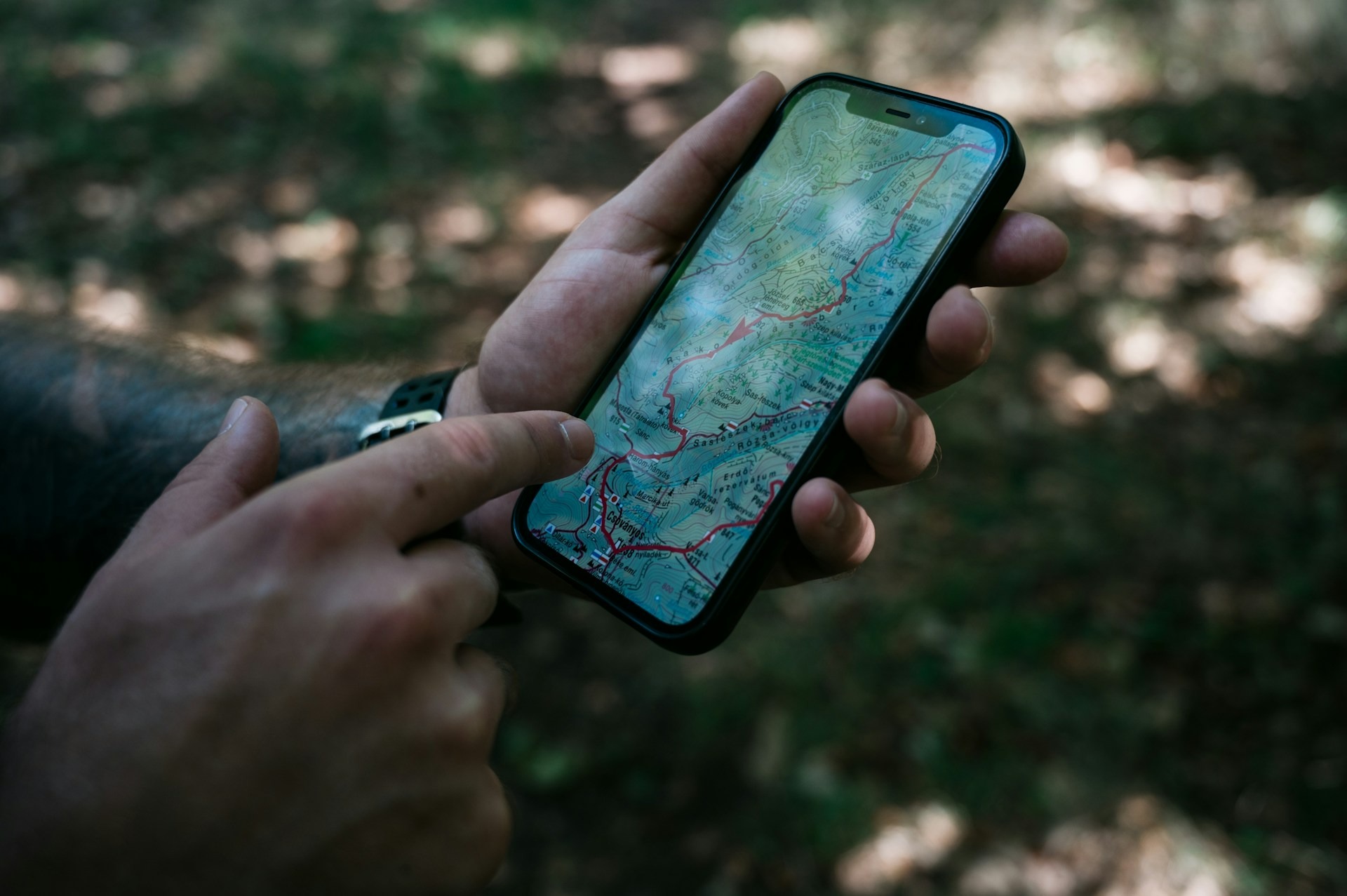
Sharing your location on an iPhone is useful when meeting friends, letting family know where you are, or helping someone find you. Apple lets you share either your live location, which updates as you move, or a single pinned location that stays fixed.
The easiest ways to do this are through the Find My app or Messages. You can also choose how long someone can see your live location and stop sharing whenever you want.
Live Location vs. Pinned Location
Before sharing, decide whether the other person needs to follow your location as you move or simply see one place on the map.
| Type | What happens | Best for |
| Live location | Updates as you move | Meeting someone, travel, family |
| Pinned location | Shows one fixed place | Sending an address or meeting point |
A pinned location does not continue tracking you after you move away. Live location sharing continues for the period you select.
How to Share Your Location Using Find My
Find My is the main iPhone app for ongoing location sharing.
Open the Find My app and tap People at the bottom of the screen. Tap the Add button, then choose Share My Location. Enter or select the person you want to share with and tap Send.
Your iPhone will ask how long you want to share your location. Choose the option that suits you, and the person will then be able to see your location in Find My.
Make Sure Location Sharing Is Turned On
If the sharing option is unavailable, open Find My and tap Me. Make sure Share My Location is turned on.
You can also tap Use This iPhone as My Location if your Apple Account has several devices and you want your iPhone to provide the location being shared. Apple also allows these settings to be managed through Settings > [your name] > Find My.
How to Share Your Location in Messages
You can also share your live location without leaving a conversation.
Open Messages and select the conversation with the person you want to share with. Tap the Add button next to the message field, select Location, and then tap Share.
Choose how long you want to share your location and tap the Send button. Your location will update in real time inside the conversation while sharing remains active.
Messages uses Find My for ongoing location sharing, so the location you share through Messages is connected to the same Apple location-sharing system.
How to Send Your Current Location Only
Sometimes you do not want someone to follow your movement. You may simply want to send the location of a restaurant, parking spot, building, or place where you are waiting.
Open the conversation in Messages, tap the Add button, and choose Location. Tap the map pin button, position the pin where you want it, and select Send Pin.
The recipient will see that location on the map, but it will not change when you move.
How Long Can You Share Your Location?
When sharing an ongoing location, Apple gives you several duration options. Depending on your current iOS version and method, you can share for a limited period or choose to share indefinitely until you manually stop.
Apple’s current guidance lists options including sharing for an hour, until the end of the day, or indefinitely.
For short meetings or trips, temporary sharing is usually enough. Indefinite sharing is more appropriate for people such as close family members when you intentionally want ongoing access.
How to Stop Sharing Your Location
You can stop sharing with one person without turning the feature off for everyone.
Open Find My, tap People, and select the person who currently has access to your location. Tap Stop Sharing My Location, then confirm.
You can also stop sharing directly from Messages. Open the conversation, tap the person’s contact icon at the top, and select Stop Sharing My Location.
To hide your location from everyone, open Find My > Me and turn off Share My Location.
Why Can’t I Share My Location?
If location sharing does not work, first check that Location Services are enabled. Go to Settings > Privacy & Security > Location Services and make sure location access is available for Find My.
Also check that Share My Location is enabled under the Me section of Find My and that your iPhone is selected as the device sharing your location.
| Problem | What to check |
| Share option is unavailable | Turn on Share My Location |
| Person cannot see you | Check Location Services |
| Wrong device location appears | Choose Use This iPhone as My Location |
| Location stops updating | Check internet and location access |
Keep in mind that some Find My location-sharing features are not available in every country or region.
Is It Safe to Share Your iPhone Location?
Location sharing can be useful, but only share your ongoing location with people you trust. Someone with access can potentially see where you are while sharing remains enabled.
It is a good idea to occasionally open Find My > People and review who can currently see your location. If someone no longer needs access, stop sharing with that person.
For situations where someone only needs to know one place, such as where you parked or where to meet, sending a pinned location provides less ongoing information than sharing your live location.
Frequently Asked Questions
Use Find My or Messages, select the person, and choose how long you want to share.
Yes. Apple allows temporary location sharing, including a one-hour option.
Live location updates as you move. A pinned current location remains fixed.
Yes. Select that person in Find My and tap Stop Sharing My Location.
Check that Share My Location and Location Services are both turned on.
Yes. Choose Indefinitely when sharing if you want it to continue until you manually stop.