Apple Pay lets you make contactless payments with an iPhone or Apple Watch and can also be used for purchases in supported apps and websites. To use it for the first time, you need to add a supported payment card to Apple Wallet, complete any verification required by your bank, and then authenticate each purchase with Face ID, Touch ID, or your device passcode.
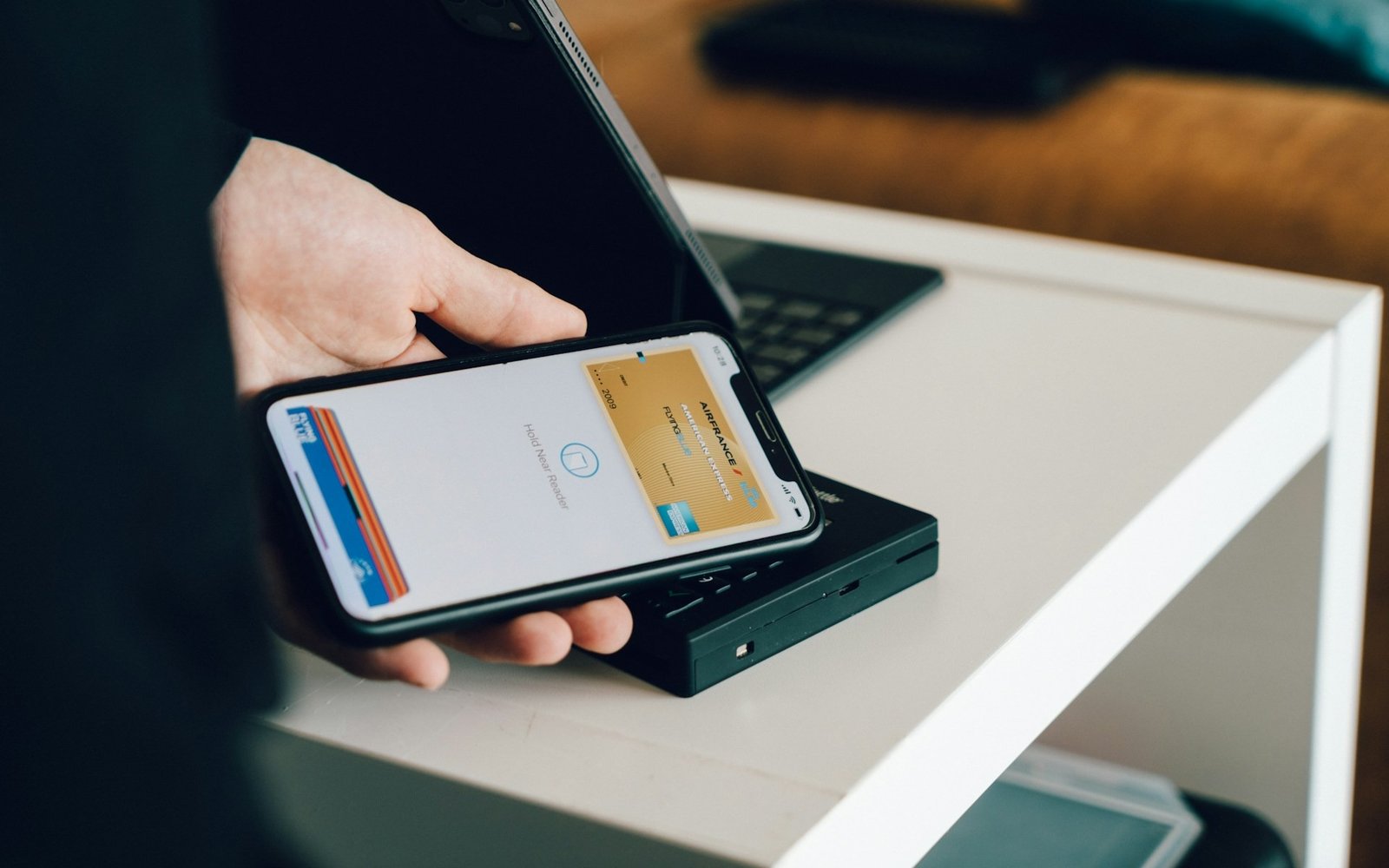
Once your card is set up, paying in a store usually takes only a few seconds. On an iPhone with Face ID, you normally double-click the side button, authenticate, and hold the top of the phone near the contactless reader until a confirmation appears.
What You Need to Know
- Apple Pay requires a compatible Apple device and a supported card from a participating bank or card issuer.
- Your device should have a passcode and a supported authentication method such as Face ID or Touch ID.
- You can use Apple Pay in stores that accept compatible contactless payments and in supported apps and websites.
- You normally confirm each payment on your device before it is completed.
- Apple Pay availability and supported cards vary by country, region, and card issuer.
What You Need Before Using Apple Pay
Before setting up Apple Pay, make sure your device and card are eligible. Apple recommends using a compatible device with current software, having a passcode set, enabling two-factor authentication for your Apple Account, and using a card from an issuer that supports Apple Pay.
Apple Pay is available in many countries and regions, but not everywhere. Card support also varies between banks, so even if Apple Pay is available where you live, your particular debit, credit, or prepaid card may not be supported.
If you are unsure, the quickest way to confirm compatibility is to check with your bank or card issuer.
Set Up Apple Pay on Your iPhone
Open the Wallet app on your iPhone and add your payment card. Follow the instructions on the screen to enter or confirm the card information. Depending on your bank, you may also need to complete an additional verification step before the card can be used.
The exact verification method is controlled by the card issuer. Some banks may verify the card automatically, while others may ask you to confirm your identity through their app, by text message, or through another method.
If Apple Wallet does not allow you to add the card, first check that your device is updated, that a passcode and Face ID or Touch ID are enabled, and that your bank supports Apple Pay. Apple also recommends checking for connection or service issues before contacting the card issuer.
Make Your First Apple Pay Purchase
Once your card is active in Wallet, look for a contactless payment terminal at checkout. Apple Pay can be used at compatible stores, restaurants, gas stations, taxis, and other locations that support the relevant contactless payment methods.
The steps depend slightly on your device:
| Device | How to pay |
| iPhone with Face ID | Double-click the side button, authenticate with Face ID or your passcode, then hold the top of the iPhone near the reader |
| iPhone with Touch ID | Double-click the Home button, authenticate if required, then hold the iPhone near the reader |
| Apple Watch | Double-click the side button, choose your card if necessary, then hold the watch display near the reader |
When the payment succeeds on an iPhone, Apple says you will see “Done” and a checkmark on the screen. An Apple Watch gives a gentle tap and audible confirmation after a successful contactless payment.
You do not normally need to open the retailer’s app or manually type your card number when making an ordinary Apple Pay purchase in a store.
Use Apple Pay Online and in Apps
Apple Pay can also be used in participating apps and on websites where it appears as a payment option. At checkout, choose Apple Pay and review the selected payment card, delivery information, and billing details before confirming the transaction.
On an iPhone or iPad with Face ID, you generally confirm the purchase by double-clicking the side button and authenticating. Devices with Touch ID can use Touch ID or the device passcode. Apple Watch users normally confirm by double-clicking the watch’s side button.
Apple also supports Apple Pay through certain third-party browsers and devices using a code that can be scanned with an iPhone or iPad, although this feature is not available in every market.
Choose or Change Your Payment Card
If you have only one card in Apple Wallet, that card will normally be used for your purchase. If you have several cards, you can select a different one before confirming the payment.
When paying in a store with an iPhone, open Apple Pay and tap the card that appears to view your other available cards. Select the one you want and then authenticate before placing the phone near the payment reader.
For online and in-app payments, Apple may show an option such as “Change Payment Method” or allow you to tap the currently selected card to choose another one.
Check Your Apple Pay Transactions
You can review recent Apple Pay activity through Apple Wallet. This can be useful if you want to confirm that a purchase went through or check which card was used.
Keep in mind that the information shown in Wallet may not always replace your bank or card statement. If you notice a payment you do not recognize or need detailed transaction information, contact your card issuer.
For refunds, disputes, or questions about a specific purchase, you may also need to contact the merchant that processed the transaction.
Fix Common Apple Pay Problems
If Apple Pay does not work the first time, start with the simple checks. Make sure the card appears correctly in Wallet, your device has an internet connection when needed, and the merchant accepts contactless payments.
If you cannot add a card at all, Apple recommends checking your software version, device compatibility, passcode and authentication settings, Apple Account two-factor authentication, supported region, and card issuer.
If the card has already been added but a payment is declined, the card issuer is usually the best source of information. Apple does not approve or decline the underlying card transaction.
Apple Pay Safety and Security
Apple Pay requires you to authenticate purchases using Face ID, Touch ID, another supported authentication method, or your device passcode in normal payment situations. This helps prevent someone from simply picking up your phone and making an ordinary Apple Pay purchase.
You should still protect your device passcode and Apple Account information. If your iPhone, iPad, or Apple Watch is lost or stolen, use Apple’s account and device security tools promptly rather than relying only on the device lock.
Apple Pay should also be treated like any other payment method: check the amount before confirming a purchase and review transactions regularly for anything you do not recognize.
Frequently Asked Questions
Usually not. On an iPhone with Face ID, you can normally double-click the side button to access Apple Pay.
No. Your bank or card issuer must support Apple Pay.
Yes. Depending on your device, you may be able to use Touch ID or your passcode.
Yes, at participating websites and in apps that offer Apple Pay as a payment option.
The card issuer may decline the underlying card transaction. Contact your bank or card issuer for the specific reason.
No. Availability depends on the country or region, merchant, device, and participating card issuer.