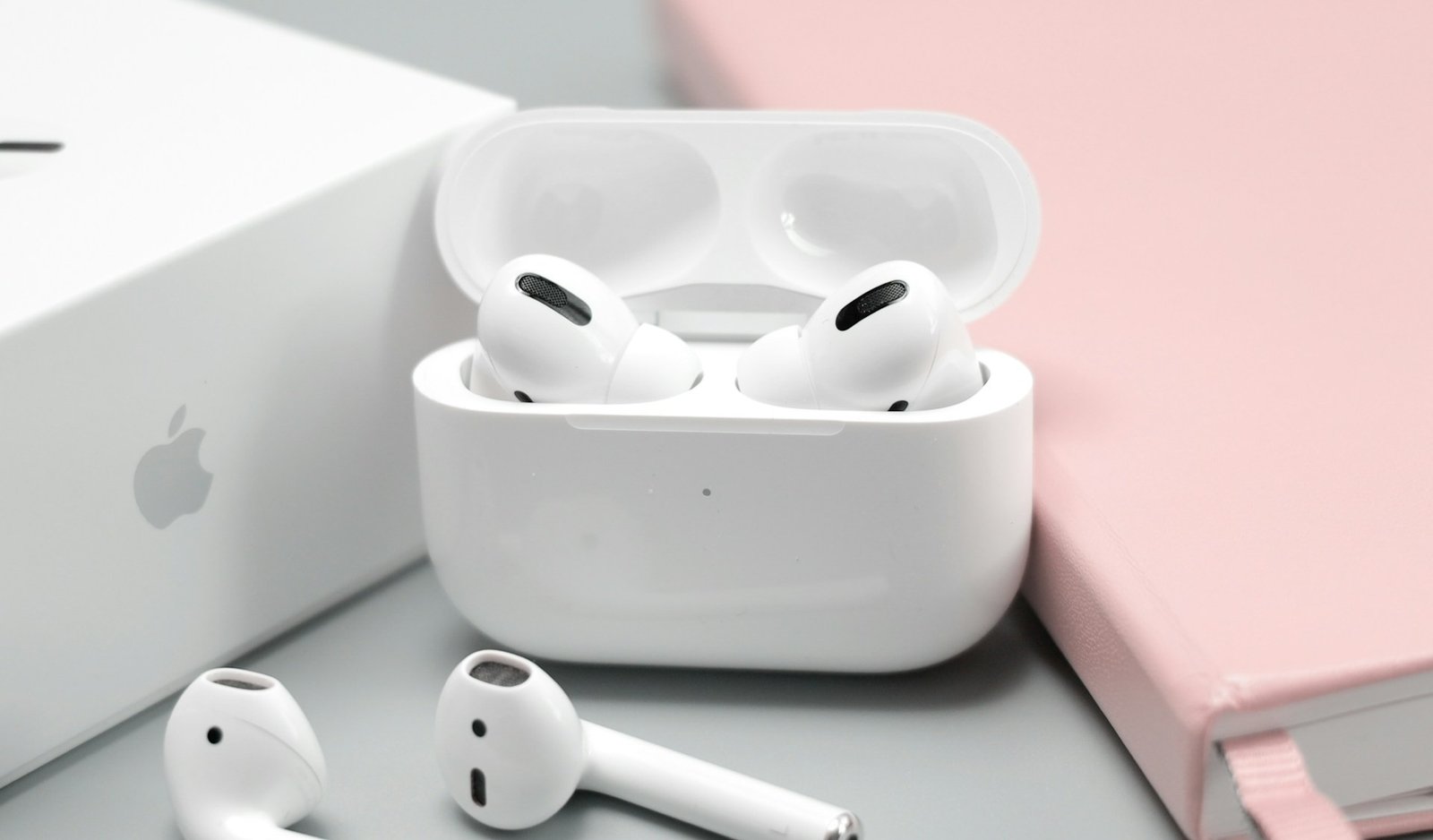
Pairing AirPods is usually quick because they connect through Bluetooth. With an iPhone or iPad, opening the AirPods case near the device normally brings up an automatic setup screen. With Android phones, Windows PCs, Macs, and other Bluetooth devices, you may need to put the AirPods into pairing mode first.
The exact method depends slightly on your AirPods model. Most older AirPods and AirPods Pro models use the setup button on the back of the charging case, while newer models such as AirPods 4 and AirPods Pro 3 use a double-tap on the front of the case to enter pairing mode.
How to Pair AirPods with an iPhone or iPad
First, turn on Bluetooth by opening Settings > Bluetooth on your iPhone or iPad. Keep your AirPods inside their charging case, open the lid, and hold the case close to your device. A setup animation should appear on the screen; follow the instructions and tap Done when setup is complete. Apple recommends using the latest version of iOS or iPadOS before pairing.
For AirPods Max, remove the headphones from the Smart Case and hold them near the iPhone or iPad within about 60 seconds. If the automatic setup animation does not appear for any AirPods model, you can pair them manually through Bluetooth settings instead.
How to Put AirPods in Pairing Mode
The method for entering pairing mode depends on which AirPods you own. When pairing mode is active, the status light should flash white, which means the AirPods are ready to connect to a nearby Bluetooth device.
| AirPods model | How to enter pairing mode |
| AirPods 1, 2, or 3 | Open the case and hold the button on the back for about 5 seconds until the light flashes white |
| AirPods Pro 1 or 2 | Open the case and hold the button on the back until the light flashes white |
| AirPods 4 | Open the case and double-tap the front until the light flashes white |
| AirPods Pro 3 | Open the case and double-tap the front until the light flashes white |
| AirPods Max | Hold the listening mode button for about 5 seconds until the light flashes white |
Once the light begins flashing white, open the Bluetooth menu on the device you want to use and select your AirPods. If the AirPods do not appear, close and reopen Bluetooth settings or move the AirPods closer to the device.
How to Pair AirPods with Android
AirPods can connect to Android phones through Bluetooth even though they are made by Apple. Open the Bluetooth settings on your Android phone and make sure Bluetooth is turned on. On many Android devices, this can be found under Settings > Connections > Bluetooth.
Put your AirPods into pairing mode until the status light flashes white, then wait for them to appear in the available Bluetooth devices list. Tap the AirPods name to connect. You can use them for listening and calls, although Apple notes that some Apple-specific features, including Siri, are not available when AirPods are used with non-Apple devices.
How to Pair AirPods with a Mac
If your AirPods are already connected to an iPhone using the same Apple Account as your Mac, they may appear automatically. Put the AirPods in your ears, open Control Centre > Bluetooth on your Mac, and select them if they are listed. Apple devices signed in to the same Apple Account can share AirPods pairing information.
If they do not appear, open System Settings > Bluetooth and make sure Bluetooth is enabled. Put the AirPods into pairing mode, wait for them to appear under nearby devices, and click Connect. Apple recommends keeping macOS updated for the best compatibility with newer AirPods models.
How to Pair AirPods with Windows
AirPods can also work as standard Bluetooth headphones with a Windows laptop or desktop computer. Open Settings > Bluetooth & devices in Windows and turn Bluetooth on, then choose the option to add a new Bluetooth device.
Put your AirPods into pairing mode until their light flashes white. When the AirPods appear in the Windows Bluetooth device list, select them and complete the connection. Some Apple-only functions may not be available on Windows, but audio playback and microphone functionality can generally work through Bluetooth.
Why Won’t My AirPods Pair?
If your AirPods do not appear in the Bluetooth list, first make sure Bluetooth is enabled and that the AirPods have enough battery power. Place both earbuds in the charging case, open the lid, and try entering pairing mode again. The status light should flash white when the AirPods are discoverable.
If they still will not connect, turn Bluetooth off and back on, restart the phone or computer, and try again. Also check whether the AirPods are already connected to another nearby device. If connection problems continue, Apple provides options to restart, unpair, or reset AirPods before attempting setup again.
Can AirPods Pair with Multiple Devices?
AirPods can be used with multiple devices, but they normally play audio from one device at a time. When you pair AirPods with an iPhone or another Apple device, they can automatically become available on other compatible Apple devices that are signed in with the same Apple Account.
Compatible AirPods can also switch automatically between devices such as an iPhone, iPad, and Mac. For non-Apple devices, you may need to select the AirPods manually from the Bluetooth menu when you want to switch from one device to another.
Do You Need Bluetooth to Pair AirPods?
AirPods rely on Bluetooth for their normal wireless connection, so Bluetooth needs to be turned on when pairing them with an iPhone, Android device, Mac, Windows PC, Apple TV, or most other compatible devices. Apple also recommends having an internet connection during initial iPhone or iPad setup so features such as Find My can be configured correctly.
AirPods Max are an exception in some situations because certain models can also connect using a compatible audio or USB-C cable. For normal wireless use, however, Bluetooth is still the standard connection method.
FAQ – frequently asked questions
On an iPhone or iPad, turn on Bluetooth, open the AirPods case with the earbuds inside, and hold it close to the device. Follow the setup animation that appears on the screen to complete pairing.
For most AirPods models, open the case and hold the setup button on the back until the light flashes white. With AirPods 4 and AirPods Pro 3, open the case and double-tap the front instead.
Yes. AirPods work as Bluetooth headphones with Android phones, although features such as Siri are unavailable. Put the AirPods into pairing mode and select them from your phone’s Bluetooth device list.
The AirPods may not be in pairing mode, their battery may be low, or they may already be connected to another device. Recharge them if necessary, make sure the status light is flashing white, and then reopen your device’s Bluetooth settings.
Yes. Turn on Bluetooth in Windows, put the AirPods into pairing mode, and add them as a new Bluetooth device. They can be used for audio and, on compatible systems, as a microphone.
Usually not. Once AirPods have been paired with a device, they should reconnect automatically when Bluetooth is enabled and the AirPods are nearby. Apple devices using the same Apple Account can also make paired AirPods available across compatible devices.